

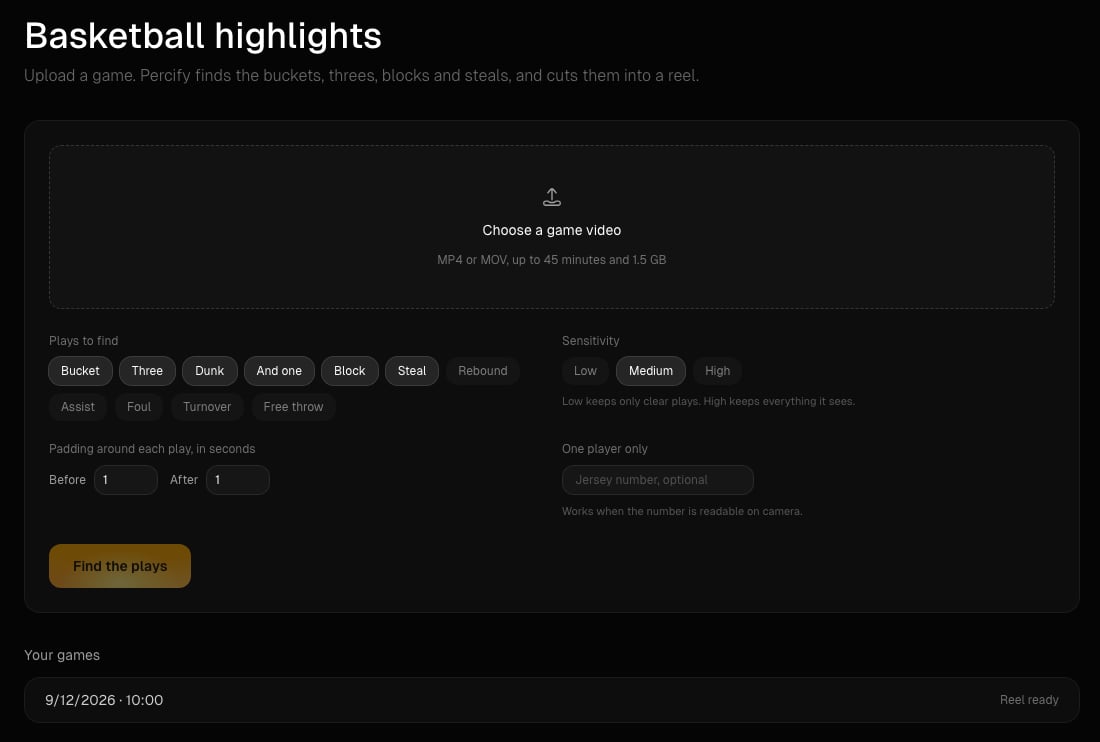
The Basketball highlights page in the Percify web app.
What you need
- A computer. The tool runs in the desktop web app at app.percify.io/home/highlights. On a phone, links to it open the mobile home instead.
- A Percify account. You can open the page signed out, but you sign in before anything is analysed.
- A game video up to 45 minutes long and under 1.5 GB. The page asks for MP4 or MOV.
- Credits for the detection and for the reel (see below).
How to make a highlight reel
1
Upload the game
Click Choose a game video and pick the file. A longer game has to be split first: upload one half at a time.
2
Choose what to keep
Under Plays to find, pick the play types: Bucket, Three, Dunk, And one, Block, Steal, Rebound, Assist, Foul, Turnover and Free throw. Set Sensitivity (Low keeps only clear plays, High keeps everything it sees), the Padding around each play, in seconds (0 to 6 before and after), and optionally a jersey number under One player only.
3
Find the plays
Click Find the plays. The price shows next to the button before you click. Progress reads “Finding plays in part 1 of 4” and so on. A 30 minute game takes a few minutes, and you can leave the page and come back.
4
Review the plays
Each play shows a frame, its time, its type and a confidence percentage. Use Starts and Ends to nudge a clip by a second, In the reel or Add to the reel to include it, and the arrows to change the order. You can change the play types, sensitivity and jersey filter here without paying again.
5
Render the reel
Pick Landscape 16:9 or Vertical 9:16, turn Label each play on or off, add an optional title (up to 60 characters) and optionally Add a track for music you own. With music added, Keep game sound mixes the music under the game audio; turn it off to use the music instead. Click Render the reel, then Download.
How much does it cost?
You pay twice: once to find the plays and once for each reel you render. Both prices appear on the page before you click, and both are refunded if that step fails.
Rendering again after you change the plays charges for the new reel. A job that makes no progress for 30 minutes is stopped and refunded. See how credits work for plan allowances.
Limits
Tips
- A wide camera angle that shows the hoop works best. If no plays are found, that is the first thing to check.
- A readable scoreboard helps: every score change should appear as a made basket or free throw.
- Missed shots are not listed. Rebounds cover offensive rebounds and contested defensive rebounds only.
- The jersey filter only keeps plays where the number was readable on camera, so it can hide plays you want. Clear it if the list looks short.
- Your last 20 games stay under Your games, so you can reopen a game and render a different cut later.
Why was my second game refused?
Why was my second game refused?
Only one game can be analysed or rendered at a time on an account. The message reads “A game is already being processed on your account. Wait for it to finish, then start the next one.” Nothing is charged for the refused upload.
Can I use it on my phone?
Can I use it on my phone?
Not yet. Open it on a computer. The finished reel can be vertical 9:16 for phones and social apps.
Does changing the settings after detection cost more?
Does changing the settings after detection cost more?
No. Play types, sensitivity and the jersey number filter the plays that were already found. You only pay again when you render another reel.
Related
How credits work
What each plan includes and how charges and refunds work.
Remake a viral short
Break a short into shots and rebuild it with your own cast.
Not enough credits
What to do when a step is refused for credits.
Upload failed
Fixes for videos that will not upload.