> ## Documentation Index
> Fetch the complete documentation index at: https://docs.percify.io/llms.txt
> Use this file to discover all available pages before exploring further.
# Lip-sync not working in Percify: how to fix it
> Fix Percify talking videos where the mouth doesn't move, the lip-sync looks off, the speech is cut off or the face looks distorted.
In Percify, lip-sync animates your photo to match the audio you give it, so most lip-sync problems come from the audio or the photo. Use a clear recording of speech with no music or background noise, and a front-facing, well-lit portrait. If the mouth doesn't move at all, the recording is usually silent: check your microphone and record again.
## Where lip-sync happens
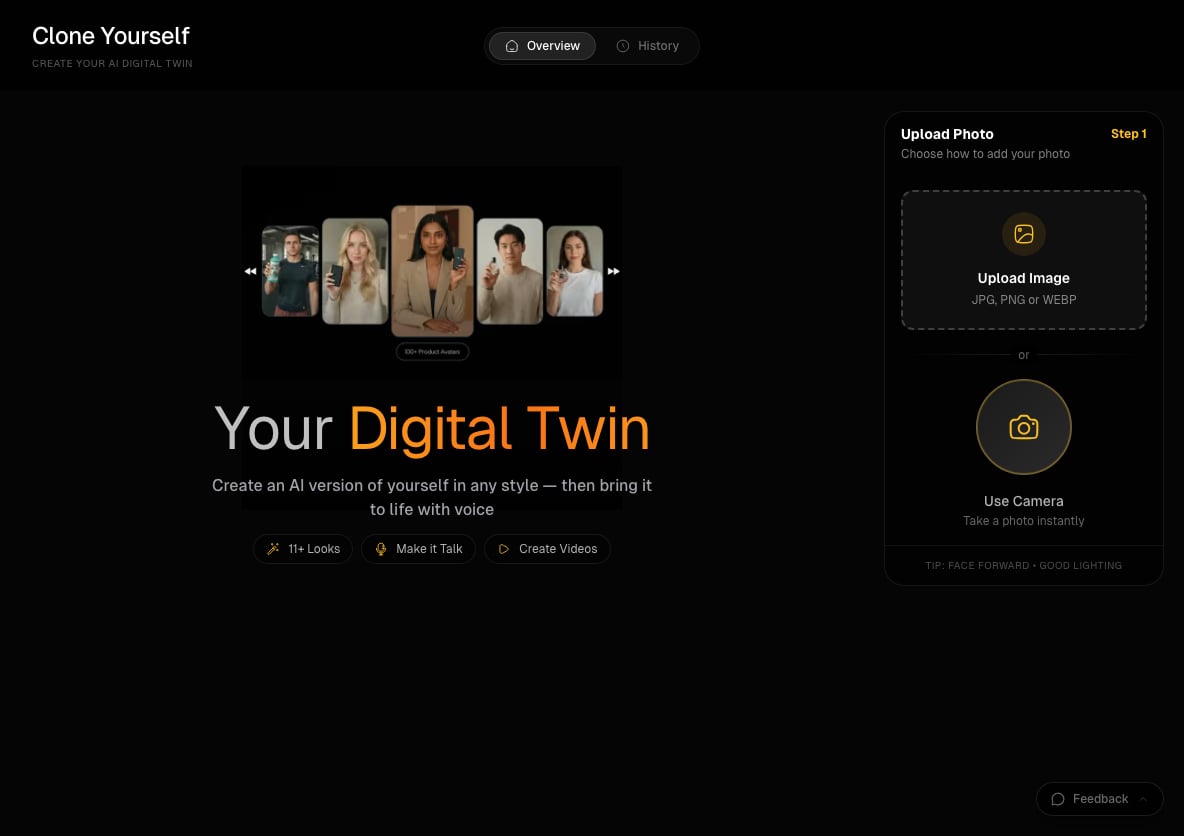
Talking videos from your own photo are made in **Clone Yourself** at [app.percify.io/home/cloneYourself](https://app.percify.io/home/cloneYourself):
1. **Upload Photo:** choose **Upload Image** (JPG, PNG or WEBP) or **Use Camera**.
2. Add audio with the record button or **Upload Audio**.
3. Choose a **Mode** (**Fast** or **High**) and a quality (**480p**, or **720p** in High mode), then press **Generate video**.
 ## The mouth doesn't move, or the video is silent
**Why:** the recording has no usable sound. Browsers can record silence when the microphone is blocked or the wrong input device is selected.
Percify checks for this before you're charged. A silent recording is refused with **That recording is completely silent** or **That recording has no audible sound in it**. While you record, the app also warns you if it can't hear anything.
**Fix:**
1. Allow microphone access for app.percify.io in your browser's site settings.
2. Check that the right microphone is selected as your input device, especially with a headset or external mic.
3. Record again and watch the level meter move while you speak.
4. Or record in another app and use **Upload Audio** (up to 10 MB).
## The lip movement looks off or out of sync
**Why:** the mouth follows the sound in your track. Music, background chatter, a second voice or long pauses give it sounds that aren't your words to follow.
**Fix:**
1. Use clean speech only. Percify's own tips are **Clear audio without noise** and **Natural speech pace**.
2. Trim long silences at the start and end of the audio.
3. Keep the audio between 5 and 60 seconds, which the app lists as what works best. Recordings must be at least 5 seconds.
4. Try **High** mode for a sharper render. It costs more and takes longer than **Fast**.
## The face looks wrong or distorted
**Why:** the photo is animated as it is. Faces turned away from the camera, dark photos and faces that are partly covered give it less to work with.
**Fix:**
1. Use a front-facing portrait with good lighting. That's the tip on the upload step.
2. Make sure the whole face is visible: no hands, hair or objects over the mouth.
3. Try a sharper photo. For large phone photos, Percify resizes them and keeps the orientation for you.
4. For more detail, choose **High** mode and **720p**.
5. To check a photo before you upload it, run it through the free [talking photo checker](https://percify.io/tool/talking-photo-checker). It finds the face in your browser, without uploading the photo, and rates face size, angle, tilt, framing, light and focus, with a fix for each.
## The speech is cut off at the end
In the chat on **Home**, some talking-video models make clips of a fixed 5 or 10 seconds, so a script longer than about 10 seconds of speech (roughly 25 words) can be cut off. Shorten the script, or use Clone Yourself, where the video follows the length of your audio.
## Other messages you might see
| Message | Fix |
| -------------------------------------------------- | ------------------------------------------------------------- |
| **Please record or select audio first** | Add a recording or upload an audio file |
| **Audio is still loading** | Wait a moment, then press **Generate video** again |
| **Image is still uploading, please wait a moment** | Wait for the photo to finish uploading |
| **Recording must be at least 5 seconds** | Record a longer take |
| **Cannot determine audio duration** | Re-export the audio as MP3 or WAV and upload it again |
| **Could not access microphone** | Allow microphone access in your browser |
| **Not Enough Credits** on the button | See [Not enough credits](/troubleshooting/not-enough-credits) |
## How long does a talking video take?
Longer audio takes longer to render, and a long recording can take 10 minutes or more. You can leave the page. Percify tells you when **Your talking avatar is ready**. If a video fails or looks stuck, see [Generation failed or stuck](/troubleshooting/generation-failed).
## Related
How lip-sync works in Percify, step by step.
Make a talking video of yourself from one photo.
Fix a cloned voice that sounds wrong.
Failed renders and what happens to your credits.
## The mouth doesn't move, or the video is silent
**Why:** the recording has no usable sound. Browsers can record silence when the microphone is blocked or the wrong input device is selected.
Percify checks for this before you're charged. A silent recording is refused with **That recording is completely silent** or **That recording has no audible sound in it**. While you record, the app also warns you if it can't hear anything.
**Fix:**
1. Allow microphone access for app.percify.io in your browser's site settings.
2. Check that the right microphone is selected as your input device, especially with a headset or external mic.
3. Record again and watch the level meter move while you speak.
4. Or record in another app and use **Upload Audio** (up to 10 MB).
## The lip movement looks off or out of sync
**Why:** the mouth follows the sound in your track. Music, background chatter, a second voice or long pauses give it sounds that aren't your words to follow.
**Fix:**
1. Use clean speech only. Percify's own tips are **Clear audio without noise** and **Natural speech pace**.
2. Trim long silences at the start and end of the audio.
3. Keep the audio between 5 and 60 seconds, which the app lists as what works best. Recordings must be at least 5 seconds.
4. Try **High** mode for a sharper render. It costs more and takes longer than **Fast**.
## The face looks wrong or distorted
**Why:** the photo is animated as it is. Faces turned away from the camera, dark photos and faces that are partly covered give it less to work with.
**Fix:**
1. Use a front-facing portrait with good lighting. That's the tip on the upload step.
2. Make sure the whole face is visible: no hands, hair or objects over the mouth.
3. Try a sharper photo. For large phone photos, Percify resizes them and keeps the orientation for you.
4. For more detail, choose **High** mode and **720p**.
5. To check a photo before you upload it, run it through the free [talking photo checker](https://percify.io/tool/talking-photo-checker). It finds the face in your browser, without uploading the photo, and rates face size, angle, tilt, framing, light and focus, with a fix for each.
## The speech is cut off at the end
In the chat on **Home**, some talking-video models make clips of a fixed 5 or 10 seconds, so a script longer than about 10 seconds of speech (roughly 25 words) can be cut off. Shorten the script, or use Clone Yourself, where the video follows the length of your audio.
## Other messages you might see
| Message | Fix |
| -------------------------------------------------- | ------------------------------------------------------------- |
| **Please record or select audio first** | Add a recording or upload an audio file |
| **Audio is still loading** | Wait a moment, then press **Generate video** again |
| **Image is still uploading, please wait a moment** | Wait for the photo to finish uploading |
| **Recording must be at least 5 seconds** | Record a longer take |
| **Cannot determine audio duration** | Re-export the audio as MP3 or WAV and upload it again |
| **Could not access microphone** | Allow microphone access in your browser |
| **Not Enough Credits** on the button | See [Not enough credits](/troubleshooting/not-enough-credits) |
## How long does a talking video take?
Longer audio takes longer to render, and a long recording can take 10 minutes or more. You can leave the page. Percify tells you when **Your talking avatar is ready**. If a video fails or looks stuck, see [Generation failed or stuck](/troubleshooting/generation-failed).
## Related
How lip-sync works in Percify, step by step.
Make a talking video of yourself from one photo.
Fix a cloned voice that sounds wrong.
Failed renders and what happens to your credits.