> ## Documentation Index
> Fetch the complete documentation index at: https://docs.percify.io/llms.txt
> Use this file to discover all available pages before exploring further.
# Make your first talking video with Percify
> Sign up, add a photo and your voice in Clone Yourself, and press Generate video. A 10-second clip in Fast mode costs 20 credits.
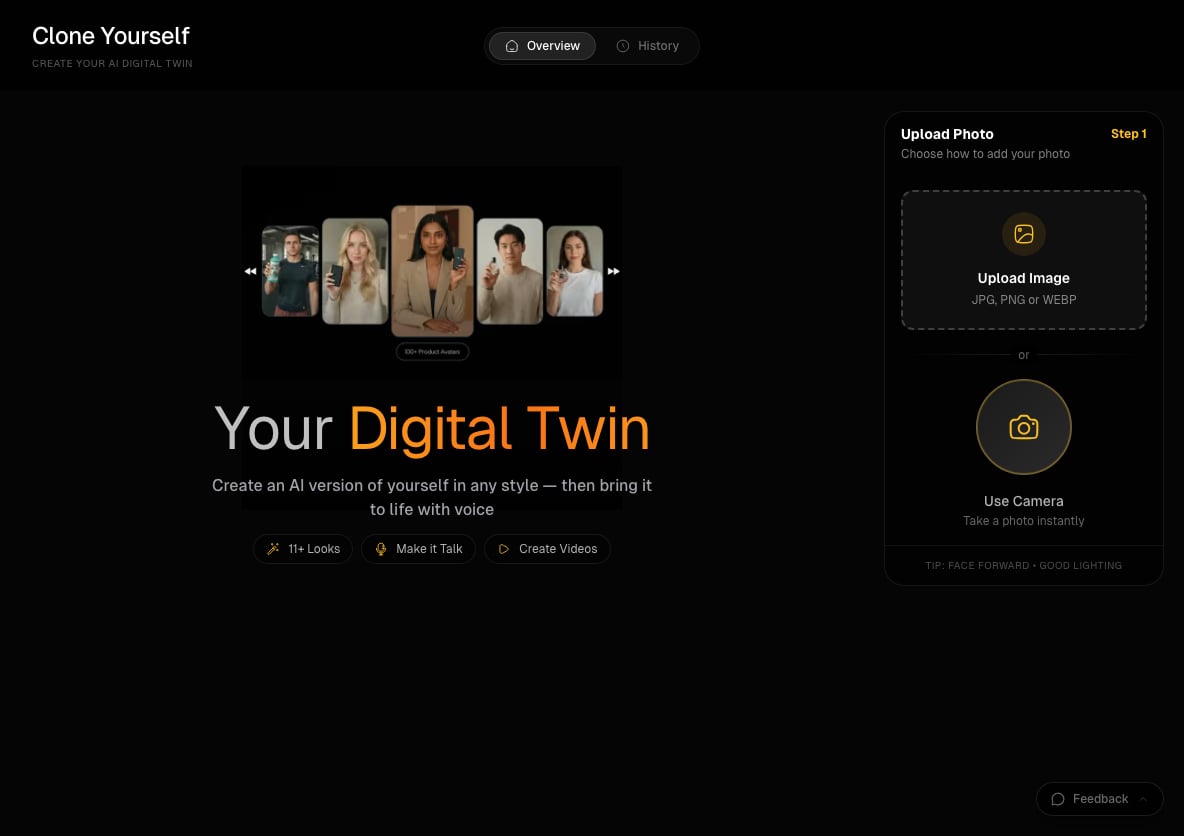
To make your first talking video with Percify, create an account at [app.percify.io](https://app.percify.io/signup), open **Clone Yourself**, add a photo of a face, record or upload the audio it should speak, and press **Generate video**. The price is 2 credits per second of audio in Fast mode, so a 10-second clip costs 20 credits.
These steps describe Percify in a desktop browser. On a phone, the app has its own layout.
## What you need
* A clear, front-facing photo of a face (JPG, PNG or WEBP), or a camera to take one
* The audio you want the face to speak: a recording of 5 to 60 seconds, or an audio file under 10 MB
* Enough credits for the clip length (see the table below)
## Make the video
Go to [app.percify.io/signup](https://app.percify.io/signup) and choose **Sign up with Google**, or enter your name, email and a password of at least 8 characters. During setup Percify may ask what you want to make and show its plans. Creating the account costs nothing. Generating uses credits, which come with a plan or a credit pack; see [Plans and payments](/percify/payments).
In the sidebar, under the tools, click **Clone Yourself**.
In the **Upload Photo** panel, choose **Upload Image**, or choose **Use Camera** to take a photo. Check the preview and press **Continue**. Face forward and use good lighting.
On the **Create Talking Avatar** page, the left panel has two tabs. On **Record**, tap to record yourself, or press **Upload Audio** to use a file. On **My Voices**, pick audio you saved before.
Under **Mode**, pick **Fast** (quicker, lower cost, 480p) or **High** (sharper, slower). With **High** you can also pick **720p** under **Quality**. **Estimated cost** shows the credits for your audio's length.
Press **Generate video**. You can leave the page while it renders. When the video is ready, press **Download**.
 ## How much does a talking video cost?
Percify charges by the length of the audio, measured when the video is made.
| Mode and quality | Credits per second | 5-second clip | 10-second clip | 30-second clip |
| ---------------- | ------------------ | ------------- | -------------- | -------------- |
| Fast, 480p | 2 | 10 | 20 | 60 |
| High, 480p | 4 | 20 | 40 | 120 |
| High, 720p | 6 | 30 | 60 | 180 |
If your balance is too low, the button reads **Not Enough Credits** and Percify shows how many credits the video needs. See [How Percify credits work](/percify/credits) and [Not enough credits](/troubleshooting/not-enough-credits).
## Tips for a better first video
* Use clear audio without background noise, spoken at a natural pace.
* Clips of 5 to 60 seconds work best.
* Use a front-facing portrait photo.
* Start in **Fast** mode to check the result, then use **High** for the version you publish.
## Other ways to start
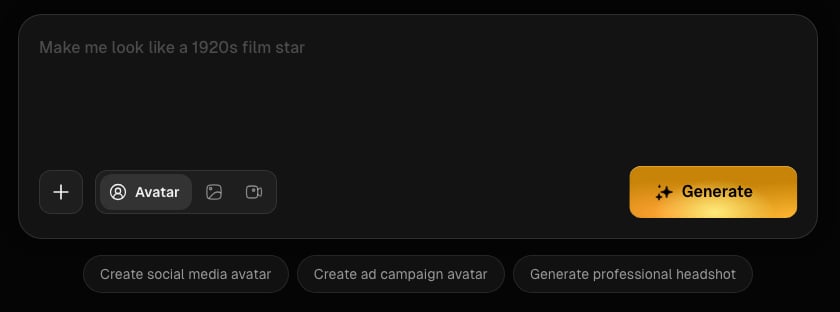
You do not need your own photo. On **Home**, choose **Avatar**, describe a person and press **Generate**. Answer the chat's quick questions (such as gender, framing and age) and confirm. When the image is ready, choose **Make it talk**, type the line, pick one of your voices or a Percify voice, and press **Go**. The card shows the credits before you press it.
## How much does a talking video cost?
Percify charges by the length of the audio, measured when the video is made.
| Mode and quality | Credits per second | 5-second clip | 10-second clip | 30-second clip |
| ---------------- | ------------------ | ------------- | -------------- | -------------- |
| Fast, 480p | 2 | 10 | 20 | 60 |
| High, 480p | 4 | 20 | 40 | 120 |
| High, 720p | 6 | 30 | 60 | 180 |
If your balance is too low, the button reads **Not Enough Credits** and Percify shows how many credits the video needs. See [How Percify credits work](/percify/credits) and [Not enough credits](/troubleshooting/not-enough-credits).
## Tips for a better first video
* Use clear audio without background noise, spoken at a natural pace.
* Clips of 5 to 60 seconds work best.
* Use a front-facing portrait photo.
* Start in **Fast** mode to check the result, then use **High** for the version you publish.
## Other ways to start
You do not need your own photo. On **Home**, choose **Avatar**, describe a person and press **Generate**. Answer the chat's quick questions (such as gender, framing and age) and confirm. When the image is ready, choose **Make it talk**, type the line, pick one of your voices or a Percify voice, and press **Go**. The card shows the credits before you press it.
 To try other video, image and audio models, open the [Playground](/create/playground).
## Related
Your digital twin, in any style, with your voice
Make any face speak any audio
What each plan includes and what things cost
Real examples and the tools behind them
To try other video, image and audio models, open the [Playground](/create/playground).
## Related
Your digital twin, in any style, with your voice
Make any face speak any audio
What each plan includes and what things cost
Real examples and the tools behind them